How to search the text inside PDFs and documents on your computer, offline
"I remember a phrase from the contract, not the file name." Searching by file name cannot answer that; searching by contents can. This guide is about doing it locally — on your own computer, without uploading your documents to a search service.
How ArchiveMind does it
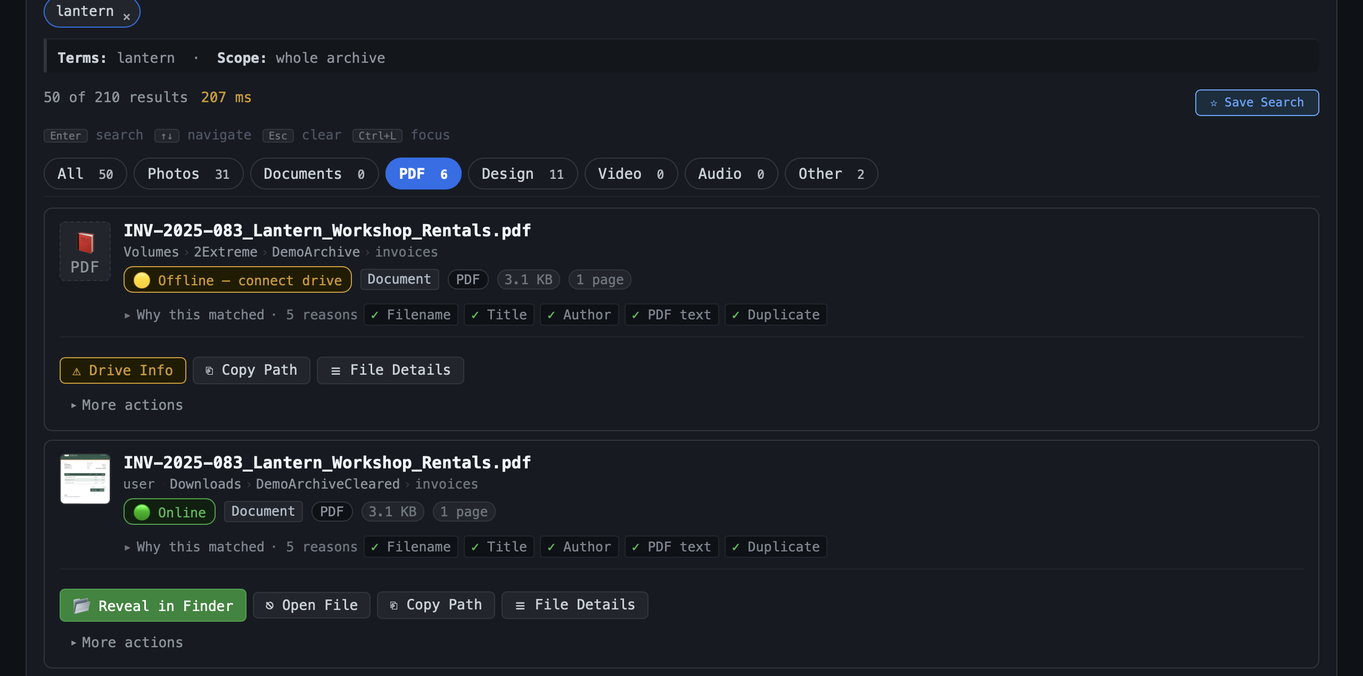
When ArchiveMind scans a folder or drive, it reads the text out of the documents it finds — PDFs, Word and other office documents, plain text, and more — and keeps that text in its catalogue alongside the file's name and location. From then on, a search for a word or phrase finds the documents that contain it, and each result says why it matched: the file name, the text inside, or both. This works for documents on a drive that is no longer plugged in, because the text was read when it was.
Nothing leaves your computer. The catalogue is a file on your disk; the app makes no network connections.
Steps
- On the Scan tab, pick the folder or drive that holds the documents and click Start Scan. Text is extracted during the scan.
- When the scan is complete, type a word or phrase into Search Explorer. Use a word that would appear in the document, not a description of it ("invoice 2023", "lease agreement", a client's name).
- Open Why this matched on a result to see whether it was the name, the contents or both. Use the file-type pills (Documents, PDF) to narrow the list.
- Click Reveal in Finder / Show in Explorer or Open File to get to the document itself.
Scanned PDFs (a picture of a page, no text behind it)
A scanned PDF has no text to extract — it is an image of a page.
ArchiveMind detects those and labels them, and since version 1.1.6 it can
read them with OCR if Tesseract is installed on your computer
(free and open source: brew install tesseract on a Mac; the Tesseract
installer on Windows). Then tick Enable OCR on the Scan tab before a
scan — the checkbox itself says whether Tesseract was found. For scanned
documents that are already in your catalogue, tick Force re-extract
as well, once. OCR is slow, about half a second per page, which is why it
is off by default.
What it cannot do
- Understand meaning. It finds the words you type (and their variants), not synonyms or paraphrases. "Agreement" does not find "contract".
- Read protected files. A password-protected PDF or an encrypted archive stays closed; the file is catalogued by name only, and says so.
- Read every format. Formats without a text extractor are catalogued by name and metadata; the file details say whether text was extracted.
- Keep up with edits made since the scan. Edited documents are re-read on the next scan of that folder; until then the catalogue holds the text as it was.
See also
- Search — what search covers, and tips.
- Does ArchiveMind read scanned PDFs?
- Too few search results.